![logo_peach.png]](https://help.becreatives.co/hs-fs/hubfs/logo_peach.png?height=23&name=logo_peach.png)
1. Upload files on the platform
When uploading raw videos to our platform, you have the flexibility to choose between two user-friendly options: The first method involves selecting your file directly from a folder; alternatively, you can opt for the simplicity of drag-and-drop functionality.

Once your video is successfully uploaded, you'll notice two distinct icons on with the video file:
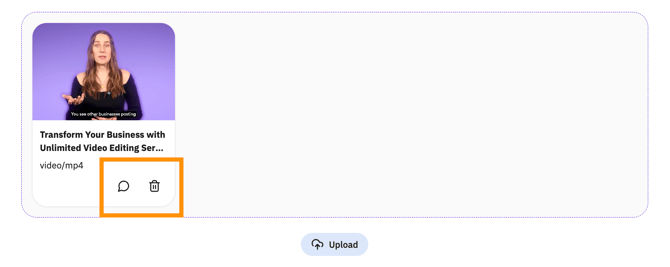
- Comment Icon 💬
The first icon resembles a speech bubble or cloud. Clicking on this icon allows you to leave comments directly related to the video. This feature proves invaluable for providing specific instructions, feedback, or any additional information pertinent to the editing request.
- Delete Icon 🗑️
The second icon takes the form of a trash can. Clicking on this icon allows you to delete the uploaded video if necessary.
Background Upload
You can click the Submit & Upload in Background and your files will continue uploading in the background if they're not already complete by the time you are done filling out the request form.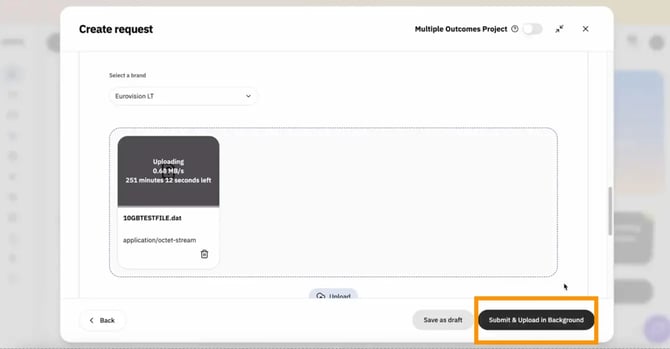
As soon as all of your media has finished uploading, your request is automatically processed and moves into the queue. No need to watch the upload progress bar or wait around before moving on to the next step.
2. Share a link with us
In addition to selecting the Upload File option, you can also click on the "Link Media" option. This opens up a dropdown menu where you can effortlessly share links to your video files:
Step 1: Click "Add media from external links"
Step 2: Copy-paste your link under "Add media link here"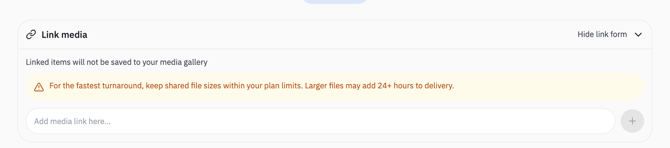
Step 3: Click the "+" button to save your changes
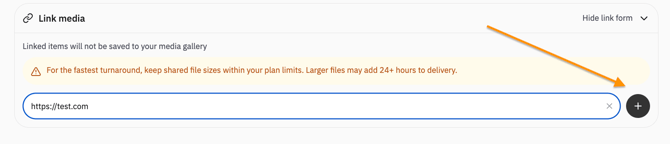
Links to Google Drive, Box, and other similar cloud storage services can be used here.
⚠️ Please make sure you set up the correct sharing permissions ("Public" or "Anyone with the link can access") so your editor can download the footage without issues.
You can also paste links to public videos on YouTube, Vimeo, TikTok, or Facebook, which your editor will be able to download using third-party software.
Step 4: Repeat Steps 2 and 3 for multiple link submissions:
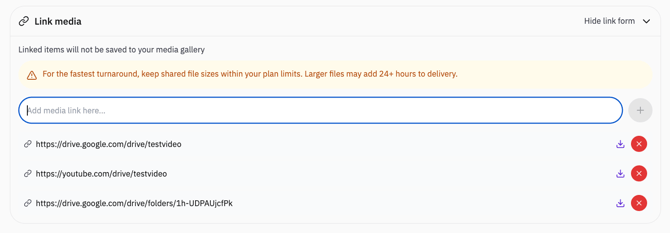
Once you've added your links, you have the flexibility to manage them according to your needs:
- Delete a link: To remove a link, click on the red "X" button.
- Visit a link: Click the arrow button to open the link in a new tab. You can use this button to double-check that the link you pasted works as intended.
3. Add a file from your Media Gallery
Our Smart Media Gallery is a central library for visual assets that help keep content creation consistent, organized, and on-brand.
Keep your content assets in one place by populating the Media Gallery beforehand, by visiting the Smart Media Gallery section of our side menu: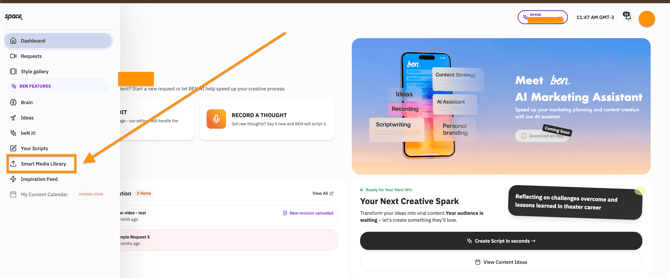
What type of content can you upload to your Smart Media Gallery?
Store and organize relevant media, such as intro and outro videos, contact card photos, logos, brand graphics, and other assets used often across your videos. That way you can keep the materials used across your content organized, helping maintain a recognizable look and feel in all your content.
Once you have one or more assets uploaded there, you will see them under the Media Gallery section in the request submission form:
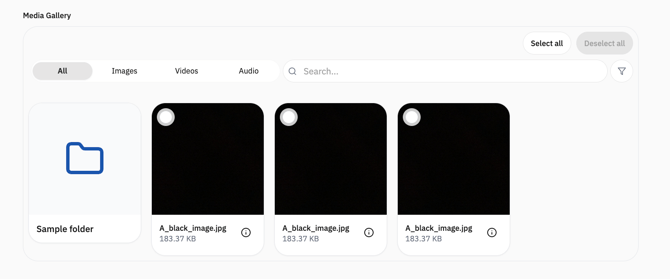
Finalize your request submission
Once you are happy with your input, simply click NEXT, and you'll be asked to provide some more details about your request, such as a description, length, priority, etc. When you're done, simply click SUBMIT and let your editor do their magic! ✨
💡 Pro Tip!
You can combine two or more of the methods laid out above:
For example, when creating an interview-style podcast episode, you can upload the raw interview from your device, then link a Drive folder link that the interviewee sent you to include, and also select an intro and outro video from your Media Gallery, all in the same request!
By embracing these straightforward methods and leveraging the features available, you'll streamline the process of uploading video files on Space, fostering clear communication and ensuring a hassle-free editing request experience 🚀