![logo_peach.png]](https://help.becreatives.co/hs-fs/hubfs/logo_peach.png?height=23&name=logo_peach.png)
Downloading Videos on Mac Using Safari
When you click Download Files on beCreatives Space and see the success message, your download has completed successfully.
Safari doesn’t always make completed downloads as obvious as other browsers, but your file should be ready and waiting for you.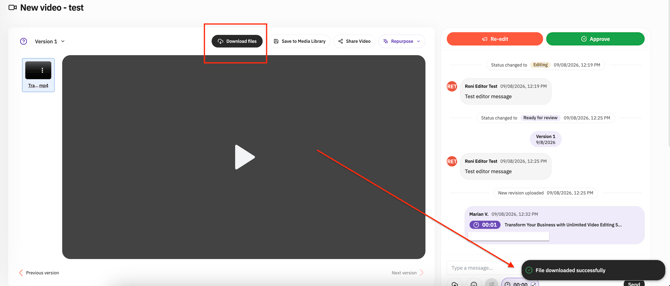
Where to find your downloaded video
A) Check Safari’s Downloads
Click the Downloads icon (the down arrow) in the top-right corner of the Safari toolbar. You’ll see your recent downloads and can click the file to open it.
B) Check your Downloads folder
By default, Safari saves downloaded files to your Mac’s Downloads folder. You can also check or change where Safari saves files by going to:
Safari → Settings → General → File download location
Still can’t see your file?
Safari may be set to Ask for each download or Ask where to save each download, depending on your Safari version. If so, check whether a save prompt is waiting for you — it can sometimes appear behind the browser window.
Downloading Videos on iPhone
Here’s the important bit: downloading a video through Safari does not automatically add it to your Photos app. That’s normal iOS behavior and doesn’t mean anything went wrong with your beCreatives download.
How to save your downloaded video to Photos
- Open your downloaded video from Safari’s Downloads or the Files app.
- Tap the Share icon.
- Select Save Video.
That’s it! Your video should now appear in your Photos library.
Quick tip 💡
If you’ve downloaded your video successfully but don’t see it in Photos, check the Files app first. Your video may already be on your iPhone — it just needs to be saved to Photos using the steps above.