![logo_peach.png]](https://help.becreatives.co/hs-fs/hubfs/logo_peach.png?height=23&name=logo_peach.png)
Different Views for Efficient Project Management
The Requests tab allows you to organize your projects according to the stage they’re in. You can either choose the "ALL" view, which displays every request across all stages, or filter them by specific stages:
- Priority Queue
- Editing
- Ready for Review
- Approved
- Draft
- Archived
Each request moves through these stages, making it simple to track progress and understand where each project stands.
Archived is where approved requests go 30 days after approval. You can still watch and download everything in them, and each one shows the date its files will be deleted. More about archived requests.
Setting Priorities and Staying Organized
To help your editor focus on what’s most important, you can set or change your requests' priority levels. This ensures that your editor knows which projects need attention first.
To keep things organized, you can sort and filter your requests by different criteria. Whether you’re searching for a specific request by name, or applying filters to narrow down your options, you’ll be able to find exactly what you need.
Reviewing Your Videos and Giving Feedback
Once a video is ready for review, it will appear in the Ready for Review section. From here, you can open the request page to watch the video in-platform and leave time-stamped comments directly on it.
To do this, simply press PLAY on the video, and when you reach a point where you need something altered, pause the video and go to the messaging board to leave the corresponding instruction for your editor. The comment you submit will be published with the timestamp of exactly the moment when you paused the video.
After going through the entire video and providing all the necessary feedback via timestamped comments, please finalize the process by clicking on the orange RE-EDIT button, so your editor knows you are done reviewing and can proceed to making the necessary adjustments.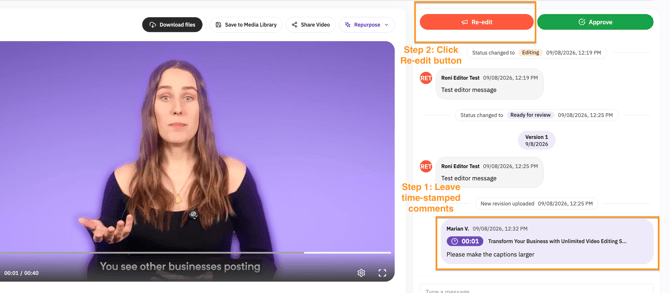
⚠️ PRO TIP! The most important aspect, if you need any changes made to a video, is to click on the Re-edit button after leaving your comments. This will trigger an urgent notification for your editor, so he can tackle those changes as soon as possible.
Finalizing Your Project
Once you’re satisfied with the result, click on the green Approve button. This will indicate to your editor that the video is finalized and ready for delivery. The editor will then finalize all files, including resized versions for different platforms if needed.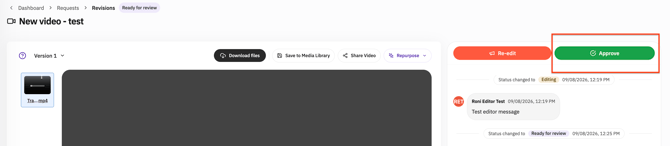
If you need to DOWNLOAD the video at any time, you can do so directly from the platform and it will be saved to your device. Alternatively, you can Save the video to your Smart Media Library for later use.
The SHARE feature is particularly useful for presenting the final edit to a third party, such as a client or anyone who doesn’t have access to your Space dashboard: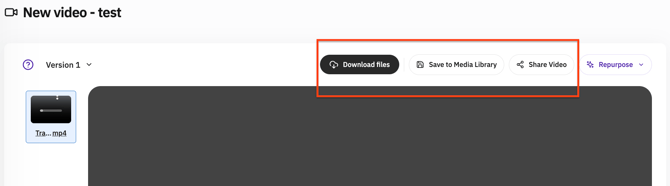
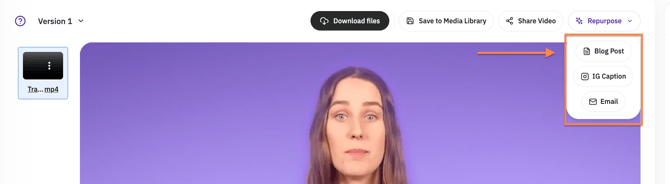
At this stage, you will also see some ben-powered tools that you can use to your advantage: You can generate text for a blog post, an Instagram caption, and even draft a professional email content with subject line, pre-header, and persuasive copy.
⚠️ Please take into account that Approved requests cannot be re-edited, so make sure you approve them only when you are fully satisfied with the end result.
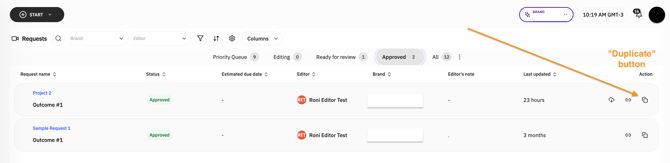
If you completed a request by mistake and you realize that you need to request more changes, please Duplicate the request by finding it on the "Approved" tab and clicking on the "Duplicate" button. This will create a separate Draft request, which you'll be able to edit and add a comment describing the extra changes you want made.
Remember, you can always reach out to your dedicated team to discuss specific changes, address any concerns, or resolve any issues that may arise, ensuring the best possible results!