![logo_peach.png]](https://help.becreatives.co/hs-fs/hubfs/logo_peach.png?height=23&name=logo_peach.png)
In the dynamic world of video editing, the ability to tailor your content to different platforms or purposes is key. If you need to generate various video versions or formats out of the same raw footage, our Multiple Outcomes option is the way.
1. Create multiple outcomes from one request
When creating a new request, you'll see a Multiple Outcomes Project toggle at the top of the form.
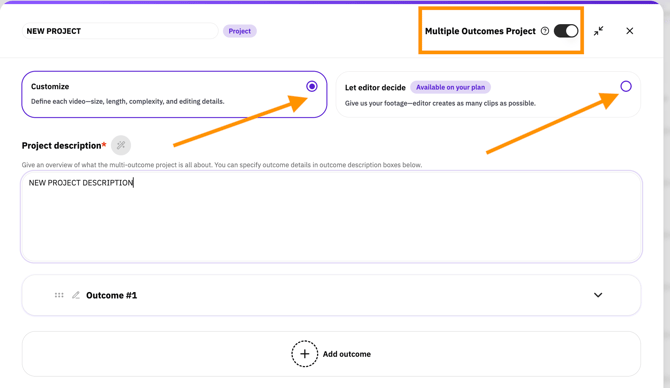
Simply switch it on and enter a title for your project at the top: This will be your macro project, containing multiple versions/cuts — What we call Outcomes.
From there, you will have two choices:A. Customize
Opt for "Customize" if you wish to personally define the outcomes based on your guidelines. This empowers you to have more control over the creative direction of the various video versions.
Customizing Outcomes:
Outcome #1 is created by default and it should be the main cut of the video, the main source from which additional versions can stem — For example, a full-length Youtube podcast episode.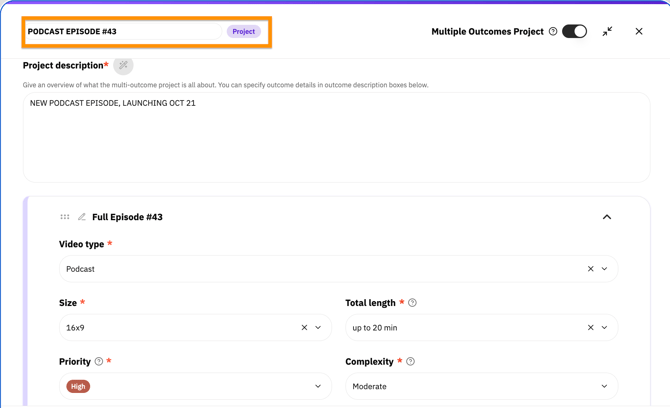
You'll be asked to fill out the following information:
1. Name: Outcome #1, #2, etc will be set by default. Give a new name to your outcomes, providing clarity on their intended purpose.
2. Video Type: Choose from various formats (e.g., Ad, Podcast, Vlog) depending on what you need.
3. Size: This refers to your video's aspect ratio, AKA its dimensions and orientation, depending on the platform where you plan to publish it:
- 9:16 is a vertical format, ideal for TikTok, Instagram Reels, Stories, and YouTube Shorts
- 16:9 is a horizontal format, commonly used for YouTube videos and web content
- 4:5 is a portrait format suited for posts in the Facebook and Instagram feeds
4. Total Length: Here you can select the maximum desired duration of your video.
5. Priority: Choose either High or Low
6. Complexity: The Complexity level determines the editing techniques and enhancements included in your video.
- Simple editing covers the basics, such as cuts, captions, music, and color correction.
- Moderate editing includes everything in the Simple level, with additional enhancements such as animated captions, B-roll footage, transitions, and sound design.
- Complex editing includes more advanced techniques, such as motion graphics, rotoscoping, advanced sound design, and color grading, for videos that require a higher level of editing.
7. Reference videos and Description: Add some links to examples that your editor can use to get inspired (optional), and a brief description outlining the specifics of the outcome you're creating.
After filling these out for the first outcome, click "Add outcome" as many times as you'd like: If you need 3 social media clips to promote your podcast, add 3 new outcomes and describe what you need for each: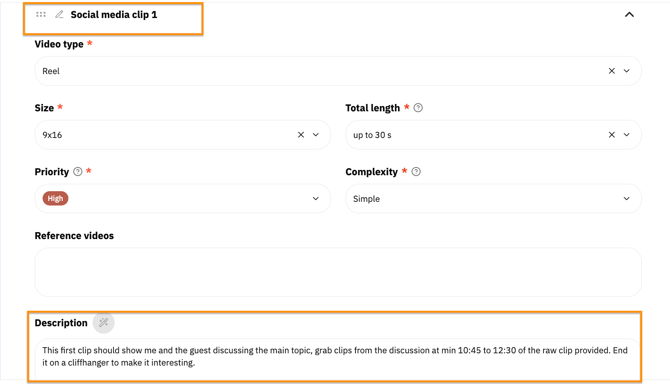
When you're done Customizing, the form should look something like this:
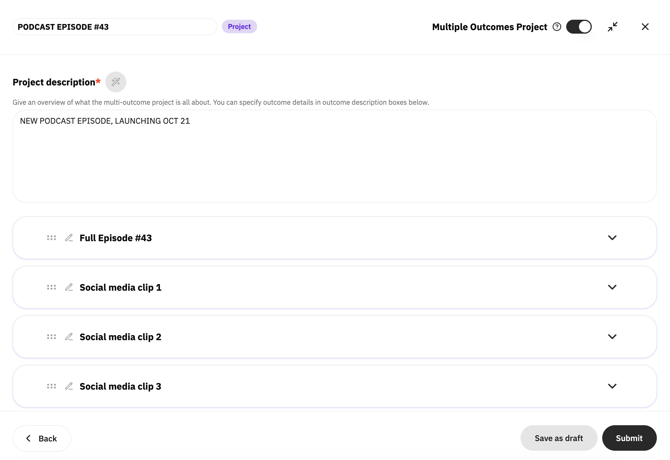
Once satisfied with the information you entered, simply click "Submit" and leave the rest to your editor.
B. Let editor decide
Select this option if you prefer to leave the determination of the number and type of outcomes to your editor. This provides flexibility for the editor to make creative decisions based on your content.
Each outcome becomes its own request
Once you submit your project, each outcome is automatically created as its own request card. This makes it easy to:
- Track the progress of each deliverable.
- Review outcomes individually.
- Manage larger projects without everything being bundled into a single request.
Keep everything organized
Although each outcome has its own request card, they're still connected through a shared Project Title. The Project Title appears in blue above each outcome, making it easy to identify which requests belong to the same project: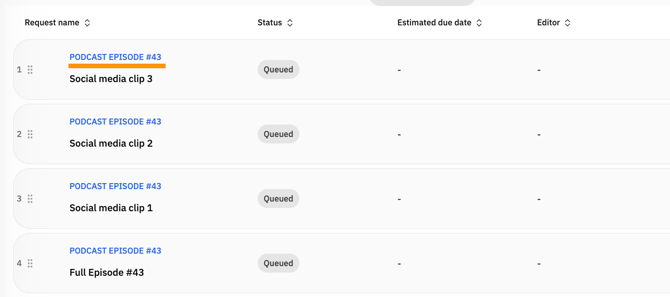
Prioritize each outcome independently
Because each outcome is its own request, you can reorder and prioritize them individually within your Priority Queue.
This gives you greater flexibility to decide which deliverables should be completed first, even when they're part of the same overall project.
Navigating Multiple Outcomes Projects
What opens when you click a project depends on where that project is in the workflow, helping you manage requests more intuitively.
Before editing begins:
- While your project is still in the Priority Queue, everything remains editable.
- Whether you click the Project Title or an individual Outcome, you'll open the editable request form, allowing you to review or update your project details before work begins.
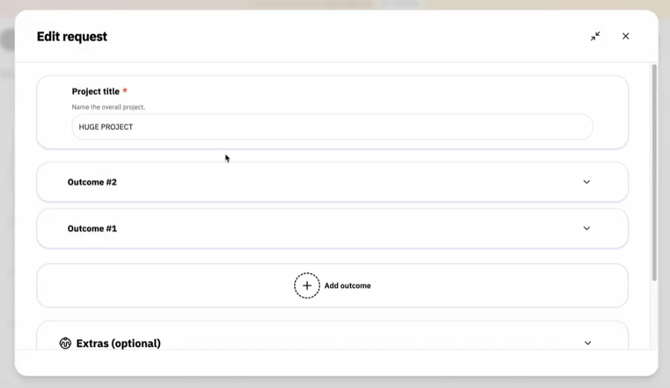
Once editing starts:
As soon as editing begins on an outcome, navigation changes slightly:
1. Click the Project Title
Selecting the blue Project Title opens a read-only view of your project and every outcome within it.
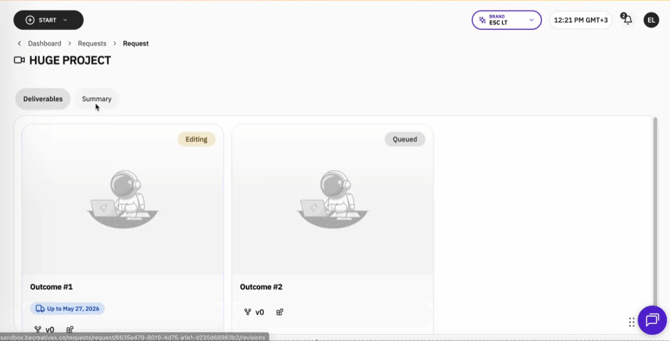
2. Click an Outcome
Selecting an individual Outcome opens its Revisions page.
This is where you can:
- View the progress of that specific outcome
- Review completed work
- Leave feedback and request revisions
- Continue the conversation about that outcome
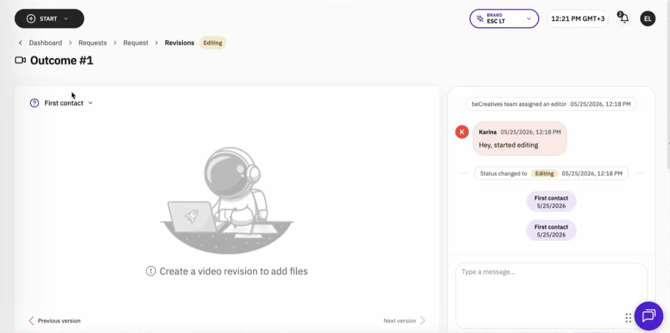
⚠️ Important note:
Although each outcome has its own request, every outcome within the same Multiple Outcomes Project is assigned to the same editor. This ensures consistency across every deliverable and helps maintain the same style, quality, and understanding of your project.
In other words, the person working on your project has visibility across all of your deliverables, helping ensure a consistent editing style and a smoother overall experience. This is especially important to take into account if you are subscribed to two or more plans, meaning you have two or more dedicated editors.
If your project is reassigned
If your project ever needs to be reassigned (for example, in the event of an editor sick leave or vacation), all outcomes move together to the new editor. Your project stays together as one cohesive piece of work, so you never have different outcomes being managed separately.
By harnessing the power of Multiple Outcomes Requests on Space, you unlock a world of possibilities to tailor your content for diverse audiences and platforms, fostering a more versatile and impactful video creation experience. 💫