![logo_peach.png]](https://help.becreatives.co/hs-fs/hubfs/logo_peach.png?height=23&name=logo_peach.png)
We've completely redesigned Multiple Outcomes Projects to give you a cleaner, more organised workspace. Instead of grouping everything into a single request, each outcome now becomes its own request while still remaining part of the same project.
What changed?
1. Create multiple outcomes from one request
When creating a new request, you'll now see a Multiple Outcomes Project toggle at the top of the form.
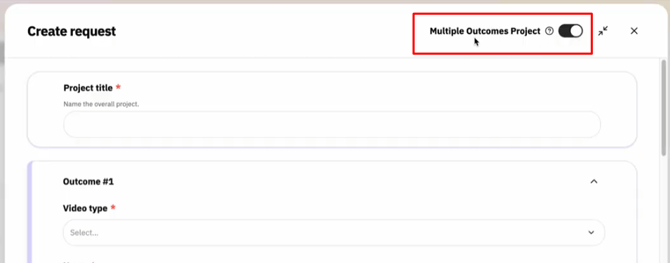
Simply switch it on to:
- Enter a main project title.
- Add multiple outcomes within the same request.
- Submit everything together in one go.
2. Each outcome becomes its own request
Once you submit your project, each outcome is automatically created as its own request card.
This makes it easier to:
- Track the progress of each deliverable.
- Review outcomes individually.
- Manage larger projects without everything being bundled into a single request.
3. Keep everything organized
Although each outcome has its own request card, they're still connected through a shared Project Title.
The Project Title appears in blue above each outcome, making it easy to identify which requests belong to the same project.
4. Prioritize each outcome independently
Because each outcome is now its own request, you can reorder and prioritize them individually within your Priority Queue.
This gives you greater flexibility to decide which deliverables should be completed first, even when they're part of the same overall project.
Navigating Multiple Outcomes Projects
We've made it easier to navigate your Multiple Outcomes Projects, so you can quickly access the information you need at every stage of your project's lifecycle.
What opens when you click a project now depends on where that project is in the workflow, helping you manage requests more intuitively.
Before editing begins:
-
While your project is still in the Priority Queue, everything remains editable.
-
Whether you click the Project Title or an individual Outcome, you'll open the editable request form, allowing you to review or update your project details before work begins.
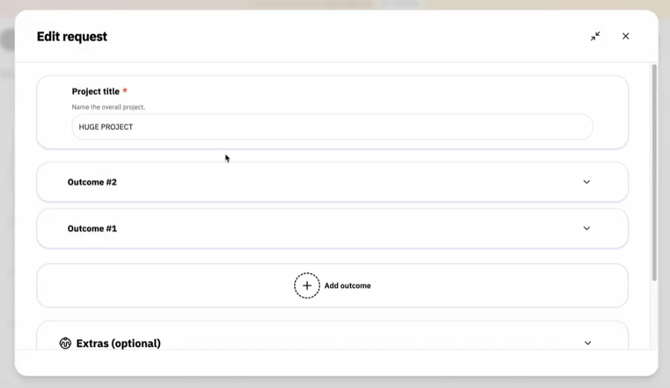
Once editing starts:
As soon as editing begins on an outcome, navigation changes slightly:
1. Click the Project Title
Selecting the blue Project Title opens a read-only view of your project and every outcome within it.
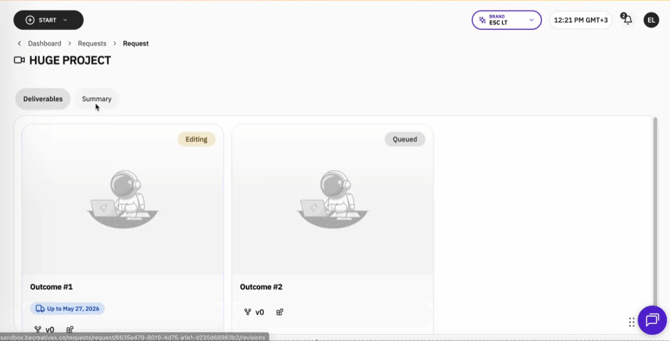
2. Click an Outcome
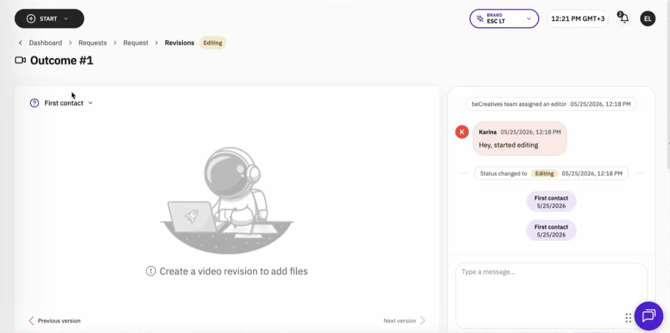
Selecting an individual Outcome opens its Revisions page.
This is where you can:
- View the progress of that specific outcome.
- Review completed work.
- Leave feedback and request revisions.
- Continue the conversation about that outcome.
⚠️ Important note:
Although each outcome has its own request, every outcome within the same Multiple Outcomes Project is assigned to the same editor. This ensures consistency across every deliverable and helps maintain the same style, quality, and understanding of your project.
In other words, the person working on your project has visibility across all of your deliverables, helping ensure a consistent editing style and a smoother overall experience. This is especially important to take into account if you are subscribed to two or more plans, meaning you have two or more dedicated editors.
If your project is reassigned
If your project ever needs to be reassigned (for example, in the event of an editor sick leave or vacation), all outcomes move together to the new editor. Your project stays together as one cohesive piece of work, so you never have different outcomes being managed separately.